

Continuing the TraceIT series on building an AI agent for IT support, let’s explore how to implement one of the most practical and useful features: enabling the agent to understand and process user attachments - especially pictures and screenshots, which users send all the time when requesting help.
A few real-world examples:
- Account locked due to multiple failed password attempts - users just drop a screenshot of the error screen. The agent can instantly analyze it and give clear advice without escalating to a human ICT technician.
- Password complexity or reset issues
- Detecting physical hardware damage
- Identifying device type or model-specific problems
Before anyone comments that Copilot Studio already allows agents to receive attachments - good luck relying on that feature. At the time of writing, it’s still unstable and unreliable in many real deployments. Not to mention the cases where we need far more granular control, custom processing logic, and strict adherence to internal SOPs.
To make the agent truly reliable, we want it to trigger image processing even when the user sends no text at all. In real support scenarios, people often just drop a screenshot (or a photo of the error screen) with an empty message, or they add extra details afterwards. The agent must handle every possible case without missing a beat.
To make this work, we need a dedicated topic that specifically handles attachments.
Let’s create a new topic called “Attachment sent” and set its trigger to “A message is received”. The key here is to leverage the system variable System.Activity.Attachments to capture the image, even if the message text is empty.
- When a user sends only an image (via the attachment/paperclip icon), the message arrives with empty text but a populated Attachments array.
- Copilot Studio allows conditional triggers based on Power Fx expressions to detect attachments.
The formula !IsEmpty(System.Activity.Attachments) conditions the trigger to only activate if an attachment is sent.
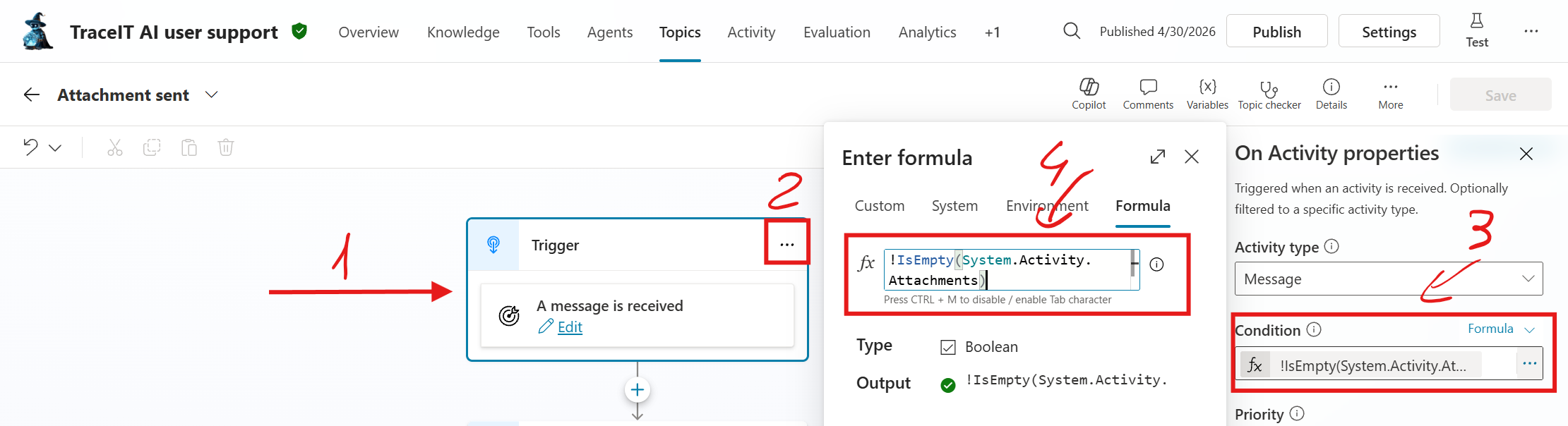
This topic will now activate for any incoming message with an attachment, acting as a "catch-all" for images.
Now that we’ve captured the attachments, the next step is to process them and bring useful information back to the agent.
First, we store the content of the uploaded file. We then pass it to an AI node that analyzes the image and returns structured data.
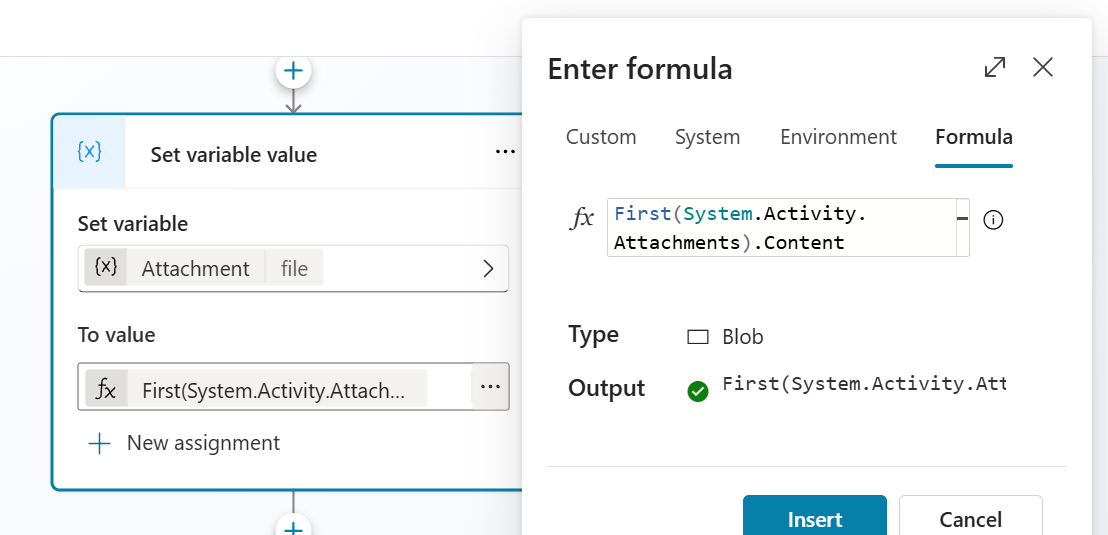
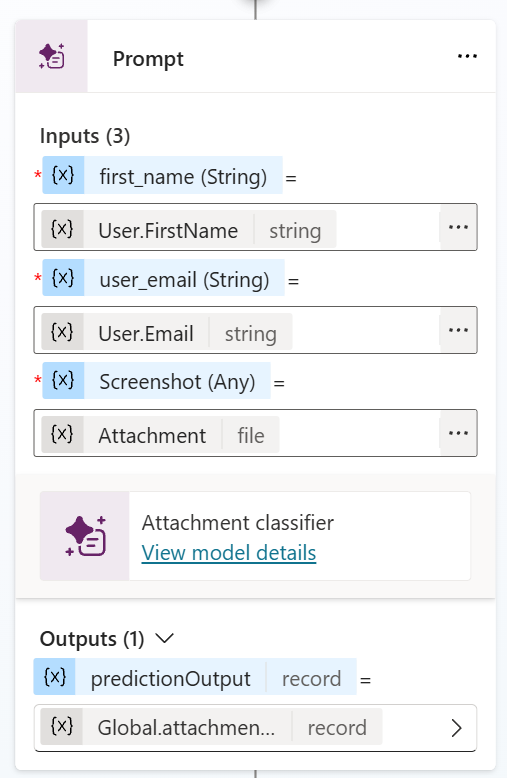
In my design, I chose to support multiple output data types and use them conditionally depending on the scenario. The AI node takes three inputs - user_email, first_name, and the attachment content — and returns a JSON object. You can easily customize the output fields based on your own requirements.
{

"issue_type": "short classification here",

"extracted_text": "all OCR-extracted text exactly as shown in the image, preserving line breaks and formatting where possible",

"model_evaluation": "internal summary written from the user's troubleshooting perspective"

}
The prompt I’m using is similar to the one shown below:
You are an expert AI troubleshooting agent specialized in Microsoft user accounts, Azure AD/Entra ID, Microsoft 365, Windows devices, and endpoint troubleshooting.

Respond ONLY in English.

The user has uploaded an attachment (screenshot, photo of a screen, PDF, or error message). Your job is to:

1. Perform high-accuracy OCR on the entire attachment and extract ALL visible text exactly as it appears.

2. Analyze the content in the context of user account and device troubleshooting.

3. Classify the primary issue into ONE of these three values only:

- "account" → if the screenshot shows any user-account, login, Microsoft 365, Entra ID, password, MFA, sync, or account-related problem

- "device" → if the screenshot shows any Windows device, hardware, driver, enrollment, device sync, BitLocker, or hardware/configuration problem

- "undetected"→ if the content cannot be clearly classified as account or device related

4. Write a concise internal model_evaluation as a natural rewrite from the USER’S point of view (the person who asked the question). Phrase it exactly like a user would describe their own problem so it can be sent directly to the knowledge base as a search/query string. Do NOT write from the AI agent’s perspective.

Return ONLY a valid JSON object with exactly these three keys and nothing else (no markdown, no extra text, no explanation):

{

"issue_type": "short classification here",

"extracted_text": "all OCR-extracted text exactly as shown in the image, preserving line breaks and formatting where possible",

"model_evaluation": "internal summary written from the user's troubleshooting perspective"

}
For example, when the model receives an image of a Windows lock screen displaying an “account locked” error, it will output something like this:
{
  "issue_type": "account",
  "extracted_text": "The referenced account is currently locked out and may not be logged on to.\n\nOK",
  "model_evaluation": "I am unable to log in because my account is locked out and I get a message saying the referenced account is currently locked out and may not be logged on to."
}
Once you have this structured information, you can integrate it smoothly into your agent flows. I recommend saving the key values as Global variables. This way, you can trigger different actions, redirect the conversation to a specific topic, or escalate the case based on the issue_type value.
Featured image generated with Grok Imagine
